PDF compression · 6 min read · Updated June 2026
How to Compress a PDF to 1 MB Without Making Text Blurry
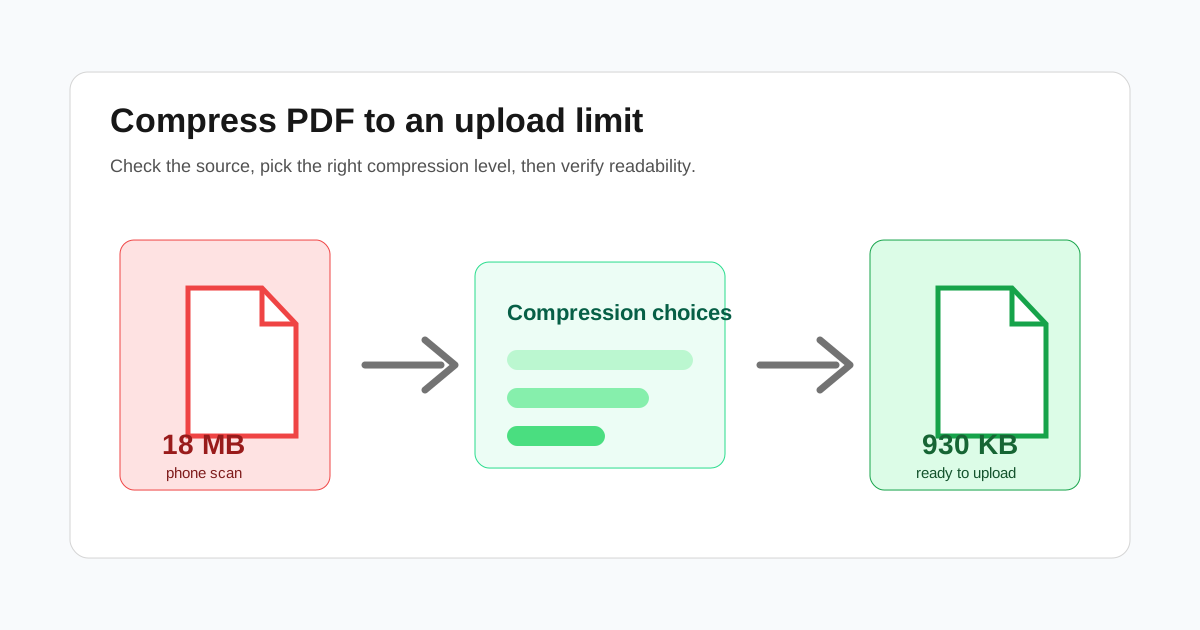
Most PDF size problems come from images, not text. A 30-page contract made from real text may be under 2 MB, while a 3-page phone scan can be 18 MB because every page is stored as a full photo. The right compression method depends on which kind of PDF you have.
Start by checking what made the PDF large
Open the file and zoom in on a paragraph. If the letters stay sharp and selectable, the PDF is mostly text. If the whole page turns soft or pixelated, it is probably a scanned image PDF.
Text PDFs usually need light cleanup. Scanned PDFs need image downsampling. Treating both the same way is why some compressed files become unreadable.
- - Text-heavy PDFs: use low or medium compression first.
- - Scanned PDFs: use stronger compression, then check small text and signatures.
- - Color scans: convert to grayscale if color is not required.
- - Photos in reports: reduce image quality gradually instead of jumping to the smallest setting.
A good 1 MB workflow
For a normal document, run medium compression and compare the result before trying a stronger setting. If the file is still above the upload limit, compress again with a stronger profile or convert scanner pages to grayscale.
For a scanned document, the biggest win is lowering page image resolution. A 300 DPI scan is often larger than needed for online upload. Around 150 DPI is usually readable for forms, receipts, and statements.
When 500 KB is realistic
A one-page or two-page PDF can often reach 500 KB. A 20-page scan with stamps, signatures, and photos usually cannot reach 500 KB without visible damage.
If a portal asks for a very small file, extract only the required pages before compressing. Removing unnecessary pages protects quality better than crushing the whole document.
What to check before uploading
After compression, open the output and check the smallest text, ID numbers, QR codes, and signatures. If those are readable at normal zoom, the file is usually safe to submit.
If the compressed PDF is larger than the original, the original was probably already optimized. In that case, split out only the pages you need or try grayscale conversion instead of repeated compression.
Questions people ask
Why is my scanned PDF so large?
Scanned PDFs store each page as an image. A few high-resolution phone photos inside a PDF can be much larger than hundreds of pages of selectable text.
Can every PDF be compressed to 1 MB?
No. Short documents often can, but long scans or photo-heavy reports may need page removal, grayscale conversion, or a higher file-size limit.
Will compression remove text?
Text is not removed. The usual quality loss comes from downsampling images inside the PDF, especially scanned pages.