PDF text extraction · 6 min read · Updated June 2026
How to Extract Text From a PDF: Digital vs Scanned Files
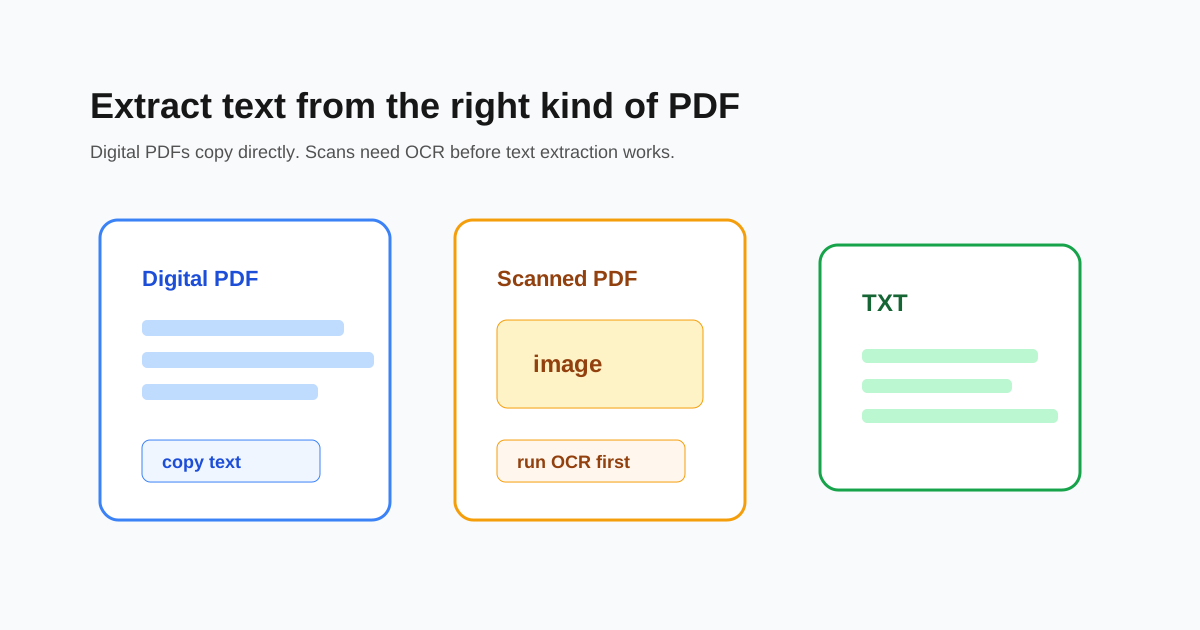
Extracting text from a PDF sounds simple until you meet the two main PDF types. A digital PDF can contain real selectable text. A scanned PDF may only contain page photos. The workflow changes depending on which one you have.
Try the one-word selection test
Open the PDF and try to select one word. If the cursor highlights text normally, the file is probably digital and text extraction should work. If the whole page acts like a picture, the file is scanned.
This test matters because text extraction tools read existing text. They cannot read a photo of text unless OCR has already recognized it.
Use OCR before extracting text from scans
For scanned PDFs, run OCR first. OCR adds a hidden text layer behind the image of the page. After that, search, copy, text extraction, and Word conversion have something to work with.
- - Rotate sideways scans before OCR.
- - Crop large scanner borders if they confuse recognition.
- - Avoid very strong compression before OCR.
- - Proofread names, dates, and totals after extraction.
Expect cleanup for line breaks and tables
PDFs store text by visual position, not always by normal paragraphs. Multi-column reports, invoices, tables, headers, and footers can produce strange line breaks or repeated text.
If table structure matters, PDF to Excel is usually a better workflow than plain text extraction.
Choose the right output
Use Extract Text when you only need words. Use PDF to Word when you need an editable document. Use OCR PDF when the source is scanned. Use PDF to Excel when table columns matter.
Questions people ask
Why did no text extract from my PDF?
The file is probably scanned. Run OCR first, then try text extraction again.
Why are the line breaks weird?
PDF text is often stored by page position, so columns and text boxes can create unusual line breaks.
Can I extract only a few pages?
Yes. Extract the needed pages into a smaller PDF first, then run text extraction.