Image conversion · 5 min read · Updated June 2026
How to Turn iPhone Photos Into a PDF: HEIC, JPG, and Page Order
iPhones often save photos as HEIC files. That format is efficient, but some upload forms, school portals, and older systems still expect JPG or PDF. The cleanest workflow is to convert only when the destination needs it.
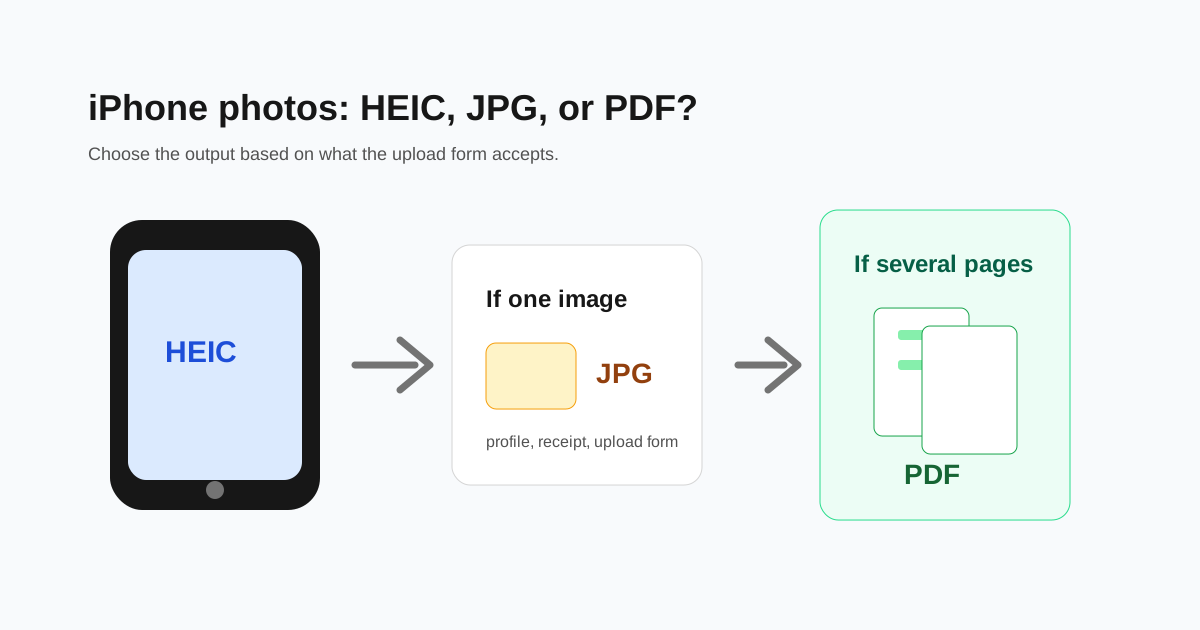
Choose JPG or PDF based on the upload requirement
Use JPG when a form asks for a photo file, profile image, product image, or single scanned page. Use PDF when the upload represents a document with multiple pages, receipts, IDs, or notes.
- - One image required: convert HEIC to JPG.
- - Several pages required as one file: combine images into PDF.
- - File too large: compress images before creating the PDF, or compress the PDF after.
- - Wrong orientation: rotate photos before combining them.
Put images in the right order before export
When creating a PDF from photos, page order matters. Sort the images before downloading the final file: front of ID before back of ID, page 1 before page 2, newest receipt first only if the reviewer expects that.
Avoid blurry document photos
If the document is blurry before conversion, the PDF will also be blurry. Retake the photo in good light, keep the page flat, and crop extra background before converting.
For text documents, do not over-compress the image before creating the PDF. A slightly larger readable file is better than a tiny file that gets rejected.
When HEIC is better left alone
HEIC is smaller than JPG at similar quality, so keep HEIC for personal storage if your apps support it. Convert to JPG only for compatibility or sharing with systems that reject HEIC.
Questions people ask
Why does my portal reject HEIC files?
Many older upload systems only allow JPG, PNG, or PDF. HEIC is common on iPhones but not universally accepted.
Should I convert HEIC to JPG before making a PDF?
Not always. If the image-to-PDF tool accepts your file, you can go straight to PDF. Convert to JPG first when another system specifically asks for JPG.
Can I put several photos into one PDF?
Yes. Add the images, drag them into the correct order, then export one PDF with each image as a page.