Web images · 5 min read · Updated June 2026
JPG to WebP: When It Helps Your Website and When It Does Not
WebP is useful because it can make photographic web images smaller while keeping them visually close to the JPG version. But it is not magic, and it is not always the right master format.
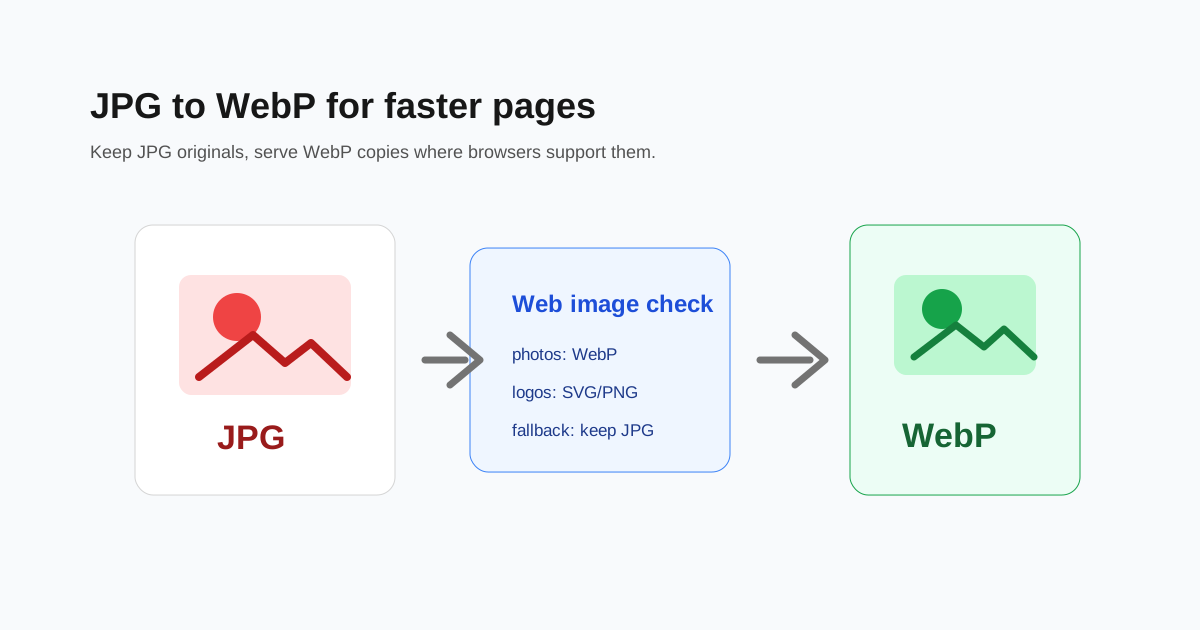
Use WebP for delivery, not always for storage
A good workflow is to keep the original JPG as your source and create a WebP copy for your website. That gives you a smaller web asset without losing the original edit-friendly file.
Resize before conversion
A 5000-pixel product photo converted to WebP is still too large if the page only shows it at 900 pixels. Resize to the display size first, then convert.
This is especially important for ecommerce grids, blog thumbnails, and landing-page hero images.
- - Product card: often 600-1000 pixels wide.
- - Blog image: often 1000-1600 pixels wide.
- - Full-width hero: often 1600-2200 pixels wide.
- - Tiny icons and logos: SVG or PNG may be better than WebP.
Watch for text and logos
WebP works well for photos. For screenshots with small text or logos with sharp edges, compare the result before replacing the original.
Keep fallbacks when needed
Modern browsers support WebP, but some workflows, CMS plugins, email clients, or older systems may still prefer JPG. Keep a JPG fallback if compatibility matters.
Questions people ask
Is WebP always smaller than JPG?
Often, but not always. If the JPG is already optimized, the difference may be small.
Should I delete my original JPG after converting?
No. Keep the original as your source file and use WebP as the web delivery copy.
Is WebP good for screenshots?
Sometimes. For screenshots with small text, compare WebP against PNG before publishing.