PDF organization · 5 min read · Updated June 2026
How to Merge Bank Statements, IDs, and Forms Into One PDF
Many portals accept only one upload even when they ask for several documents. The goal is not just to combine files; it is to create a single PDF that a reviewer can understand in one pass.
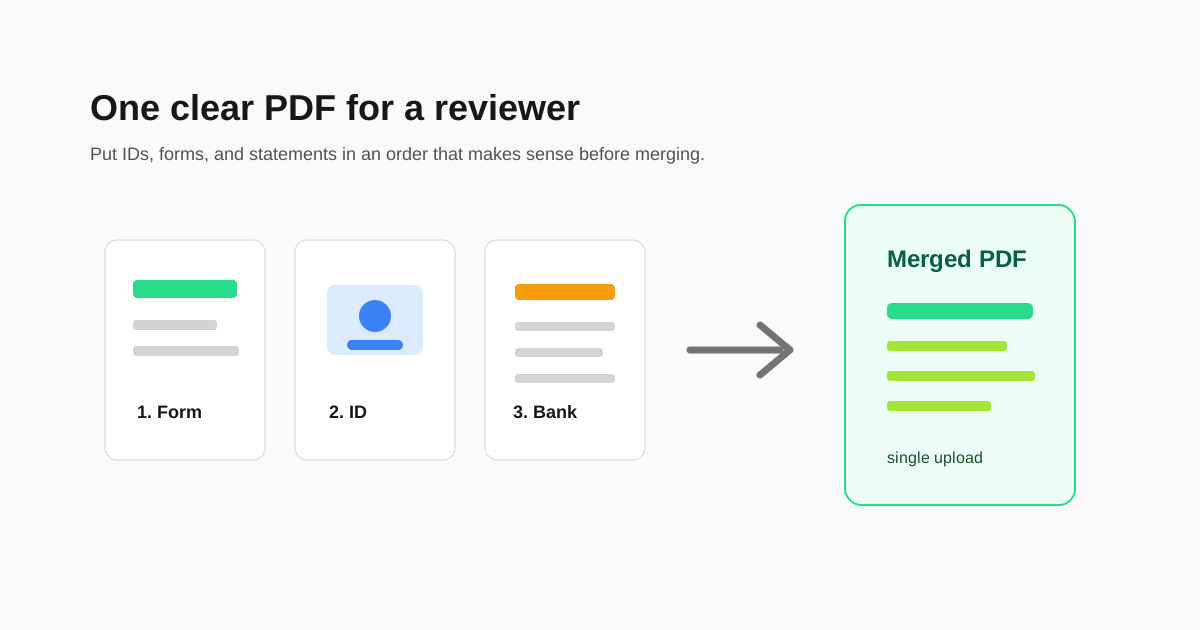
Use a reviewer-friendly order
Put the document that identifies the application first, then supporting evidence, then optional or older material. This keeps the file easy to scan and reduces the chance that a reviewer misses an important page.
- - Cover form or application summary
- - Passport or ID page
- - Proof of address
- - Recent bank statements, newest first unless the portal says otherwise
- - Employment, school, invoice, or reimbursement evidence
- - Extra explanations or translated copies
Fix each source file before merging
Rotate sideways scans, delete blank scanner pages, and split out private pages before combining. It is easier to fix a 2-page source file than to repair a 60-page merged PDF later.
If one source PDF is password-protected, unlock it with the password first. A merger cannot read encrypted page contents until the file is opened.
Be careful with signed PDFs
Digital signatures certify the original file bytes. When you merge a signed PDF with another file, the old signature can become invalid because the document has changed.
For forms that must stay digitally signed, merge the unsigned materials first and sign the final combined file at the end.
Keep the final file small enough
Portals often reject large PDFs. After merging, check the file size and compress the final PDF if needed. Compression after merging is usually simpler than compressing every source document separately.
Questions people ask
Can I merge phone scans with exported Word PDFs?
Yes. Scanned PDFs, exported Word files, and browser-saved PDFs can be combined in one output file.
What order should bank statements be in?
Use the order requested by the portal. If it does not specify, newest first is usually easiest for reviewers.
Why did one page appear sideways after merging?
The source PDF likely had sideways rotation metadata. Rotate that file before merging or rotate the final page afterwards.