PDF cleanup · 5 min read · Updated June 2026
How to Crop Scanner Borders and White Margins From a PDF
Phone scans and office scanners often leave wide borders, desk background, black edges, or huge white margins. Cropping makes the PDF cleaner and easier to read, especially before printing or uploading.
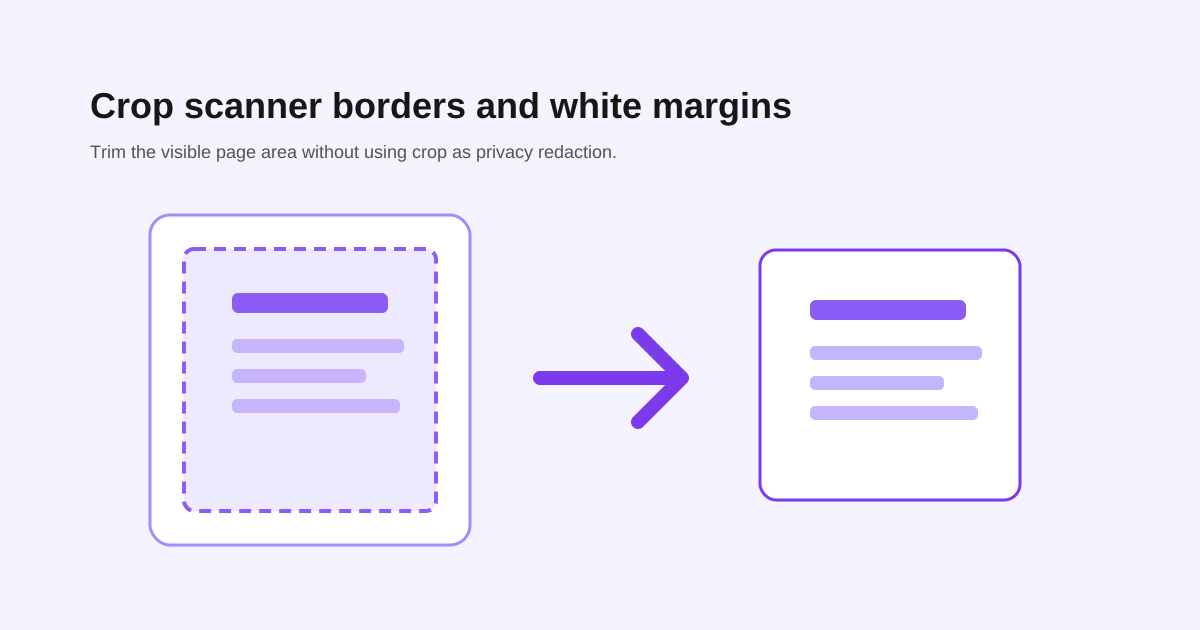
Crop for readability, not privacy
Cropping changes the visible page area. In many PDFs, content outside the crop box may still exist inside the file. That is fine for trimming margins, but it is not safe for hiding sensitive information.
If you need to remove account numbers, addresses, or private details, use a redaction workflow instead of crop.
Preview more than page one
Scanner pages can shift. A crop that looks perfect on page one might cut off a stamp, signature, page number, or footer later in the document.
- - Check pages with signatures.
- - Check pages with stamps or seals.
- - Check headers, footers, and page numbers.
- - Check QR codes and barcodes near the edge.
Crop before compression when borders are large
If the PDF has large photo backgrounds around every page, crop first. Removing visible background area can make compression more effective and makes the document easier to review.
Keep the original scan
Cropping is usually a final cleanup step. Keep the original scan until the uploaded or printed copy is accepted, especially for official documents.
Questions people ask
Can I remove white margins from a PDF?
Yes. Cropping is the right tool for trimming white margins and scanner borders.
Does cropping permanently delete hidden content?
Not always. Do not use crop as a privacy or redaction method.
Should I crop before compressing?
Often yes, especially when scans include large borders or background areas.